Customer location data is crucial for those engaged in field sales, door-to-door sales, or maintenance services. While many of you likely use Google Maps to track customer locations, are you struggling to identify which customers to visit next or where your high-priority customers are located? In fact, by utilizing “Google My Maps”—a feature within Google Maps—you can easily map customer locations on Google Maps, color-code them by customer rank or status, and create strategic visit plans. In this article, we’ll provide a detailed explanation of how to map customer locations on Google Maps and the useful features of “Google My Maps” that you should know. > [Free PDF Download] Guidebook on Avoiding Failure digital transformation Now Available
Thorough explanation of how to map customer information on Google Maps
Recommended Documents
-
SUCCESS STORIES OF COMPANIES THAT HAVE ACHIEVED RESULTS WITH UPWARD
Click here to download the document
Pickup Articles
Table of Contents
How to use Google Maps to map customer locations

First, we will explain the procedure for mapping customer locations on Google Maps. The mapping is done using Google My Maps, a free tool provided by Google Maps.
STEP1: Access the Google My Maps page.
Google My Maps requires a Google account.
STEP2: IF YOU ARE USING A COMPUTER, CLICK "+ CREATE NEW MAP" IN THE UPPER LEFT CORNER OF THE SCREEN; IF YOU ARE USING A SMARTPHONE, TAP THE "+" BUTTON IN THE LOWER RIGHT CORNER OF THE SCREEN.
STEP3: Then the Google Maps map screen such as "Untitled Map" will appear. Click on the "Legend" item in the upper left corner of the screen, and then click on the "Import" item.
STEP4: Import a data file containing the location of the customers you wish to map to Google Maps.
Supported file formats include CSV, Excel, Google Spreadsheet, etc. Basically, the information to be imported is the company name and address, if available, which will be mapped to Google Maps.
In addition to company name and address, text information such as customer status (order, lost order, pending) and customer rank (A rank, B rank, C rank) can also be reflected on the Google Map.
STEP5: After uploading the data file, the "Select columns to place landmarks" item will appear. Specify the columns (addresses, latitude/longitude pairs, etc.) from the file that indicate where the landmarks will be placed on the map, and click "Continue.
If the title of the column is written in Japanese, it will appear as "unnamed(1)" and you will not know which column to specify. Therefore, please be sure to write the column titles to be imported in English. For example, use "Company" for the column title of the company name and "Address" for the column title of the address.
STEP6: FINALLY, THE "COLUMNS TO BE USED AS MARKER TITLES" ITEM WILL APPEAR. SELECT THE COLUMNS OF DATA (LOCATION, USER'S NAME, ETC.) TO BE USED AS MARKER (PIN) TITLES.
STEP7: The mapping process to Google Maps is now complete; the imported customer location information will be mapped as a landmark on Google Maps.
■Related Articles
Why "Location-Based Services" Can Help Sales Organizations Increase Productivity
4 useful features of Google My Maps

With Google My Maps, you can use a variety of useful features in addition to mapping your customers' locations. Here are four features we particularly recommend.
Color coding of landmarks and landmarks can be changed.
By tapping on a landmark on Google My Maps and selecting the "Style" item, you can change the color and icon of the landmark. This allows you to see at a glance the importance and rank of a customer, improving the efficiency of your visitation activities.
Maps created can be shared within the company.
By selecting "Share" from the "Legend" section of Google My Maps, you can share maps with users who have Google accounts. This allows maps to be shared within the company, making it easier to strategically plan visits.
Can add text and images to customer location information
By clicking on mapped customer landmarks, users can attach images and videos, and enter text. Photos and videos are particularly effective as a means of gathering information, as they can be used to accurately and instantly logmuch of the information. In addition, by utilizing the aforementioned sharing function with Google account, it is possible to share activity reports within the company.
Multiple maps can be created.
Google My Maps allows you to create not just one, but multiple maps. This allows you to create maps for different strategies, such as by customer rank or by area.
>Download the service introduction document of UPWARD, mobile CRM for outside sales and door-to-door sales click here
Disadvantages of using Google My Maps to manage customer location data
As mentioned above, it is possible to manage customer location data with Google My Maps.
However, Google My Maps has several disadvantages.
Color coding and target changes must be done manually, one by one.
Customer information mapped on Google My Maps must be done manually one by one every time there is a change.
For sales representatives who have a large number of customers to visit and are in charge of, managing Google My Maps itself becomes stressful, and there is a very high possibility that they will give up on using it halfway through the process.
Not suitable for customer management
Google My Maps is only a map function.
Therefore, it is not suitable for storing, centrally managing, and sharing all customer information scattered throughout the company like a CRM (customer relationship management tool).
In addition, since customer information is not stored in a single database like CRM, it is not possible to use customer information to plan and improve sales and marketing strategies.
The following article details the customer management products that support appication, which are useful in the field of door-to-door sales and outside sales.
[Latest in 2024] Customer Management app14 selections! Thorough explanation of free versions, selection points, etc.
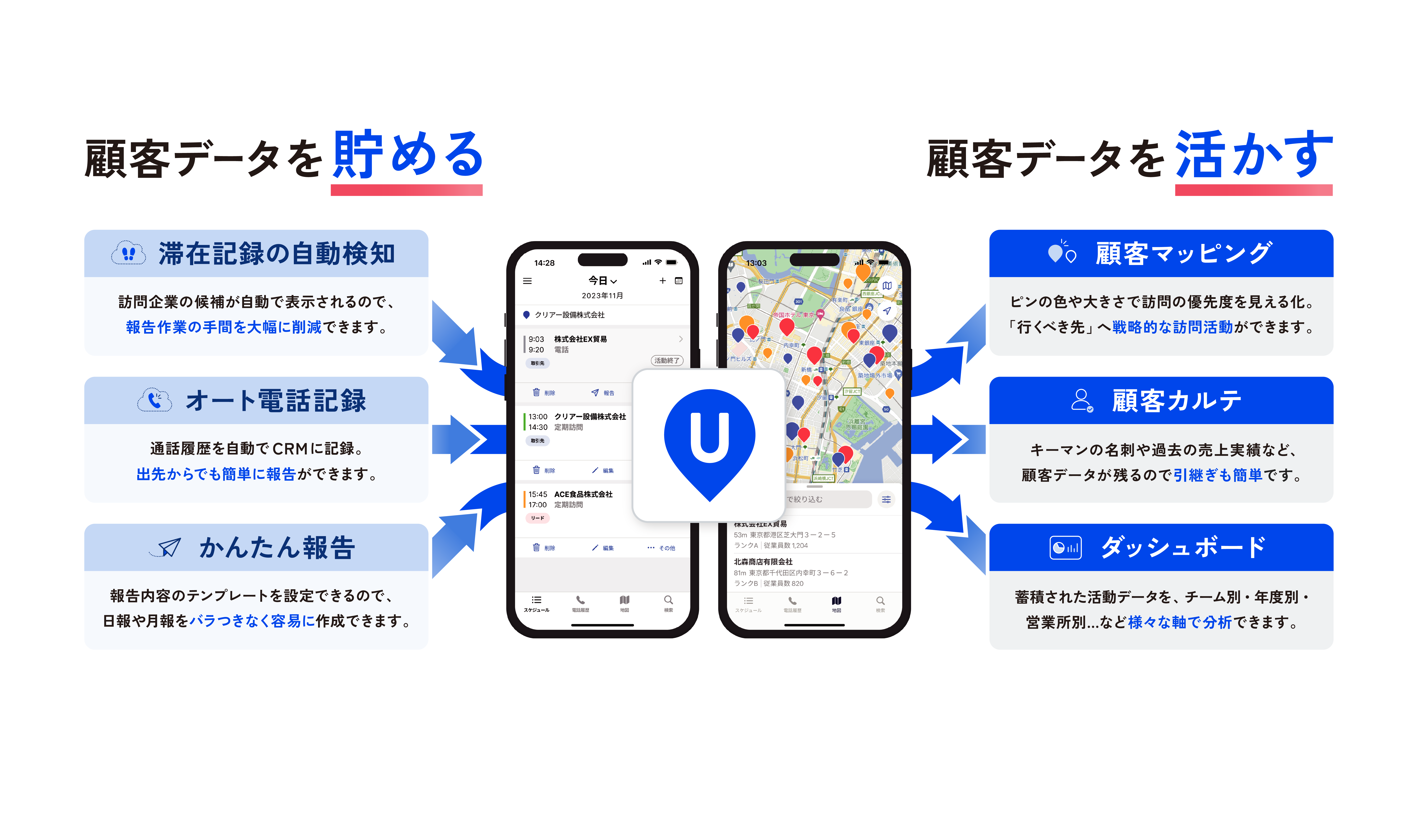
EASIER AND MORE CONVENIENT! WHAT IS UPWARD, A SALES DIGITAL TRANSFORMATIONTOOL THAT ALLOWS YOU TO VISUALIZE CUSTOMER INFORMATION ON A MAP?

WE PROVIDE AND DEVELOP A SALES DIGITAL TRANSFORMATIONTOOL "UPWARD" THAT MAXIMIZES THE VALUE OF CRM/SFA. BY USING "UPWARD," CUSTOMER DATA SUCH AS CUSTOMER PROFILE INFORMATION, BUSINESS MEETING HISTORY, AND ACTIVITY REPORTS CAN BE SEMI-AUTOMATICALLY STORED IN A CUSTOMER DATABASE CALLED CRM (CUSTOMER RELATIONSHIP MANAGEMENT) WITH A SINGLE SMARTPHONE. WHEN THE PERSON IN CHARGE IN THE FIELD CREATES A DAILY SALES REPORT OR ACTIVITY REPORT, NOT ONLY IS THE REPORT FORMAT AUTOMATICALLY CREATED ON "UPWARD", BUT ALSO THE REPORT CAN BE EASILY CREATED IN HIS/HER SPARE TIME BY VOICE INPUT SUPPORT.
The data entered on a daily basis is visualized on a map, allowing users to intuitively know which customers to visit next. Anyone can visit not only the usual "easy-to-reach" destinations, but also the "right" destinations, making strategic visits possible.
To download service introduction materials for UPWARD, mobile CRM for outside and door-to-door sales, please click click here
A CASE STUDY OF A COMPANY THAT REALIZED SALES DIGITAL TRANSFORMATIONBY UTILIZING THE MAP FUNCTION OF "UPWARD".
Daihatsu Motor Co.
Creating Motivation through "Greening of the Desert" New Activity Management Style Results in 5.5 times sales after 1 year
Sun Chlorella Japan Co.
Supporting users' health with detailed communication through community-based sales! Efficiently deepen relationships with customers at digital transformation
Google My Maps to improve efficiency of visitation activities
By utilizing Google My Maps, you can easily map customer locations to Google Maps. It is possible to change the color of landmarks and icons for each customer rank, as well as input activity reports through text input and image attachment functions. In addition, by utilizing the map sharing function, you can plan visits internally using the map as a starting point and strategically plan visits. We hope you will find this method useful and improve the efficiency of your visitation activities.
A full overview of the benefits and best practices of the introduction of the system
Download a free set of 3 documents