IT IS NOT NECESSARILY NECESSARY TO DEVELOP A NEW CORE SYSTEM OR INTRODUCE NEW TOOLS TO CREATE A DATABASE OF YOUR COMPANY'S CUSTOMER INFORMATION. IN FACT, YOU CAN EASILY CREATE A DATABASE FOR CUSTOMER MANAGEMENT BY USING EXCEL, WHICH YOU USE IN YOUR DAILY WORK. IN THIS ARTICLE, WE WILL EXPLAIN IN DETAIL HOW TO MANAGE CUSTOMERS USING EXCEL. IN ADDITION, WE WILL ALSO INTRODUCE SOME FUNCTIONS OF EXCEL THAT ARE USEFUL TO KNOW WHEN CONDUCTING CUSTOMER MANAGEMENT ON EXCEL, SO PLEASE REFER TO THIS ARTICLE. >FREE PDF DOWNLOAD] A GUIDEBOOK FOR AVOIDING MISTAKES IN SALES DIGITAL TRANSFORMATION IS NOW BEING DISTRIBUTED.
How to manage customers with Excel! 6 useful functions and how to create a database.
Recommended Documents
-
SUCCESS STORIES OF COMPANIES THAT HAVE ACHIEVED RESULTS WITH UPWARD
Click here to download the document
Pickup Articles
Table of Contents
3 STEP TO MANAGE CUSTOMERS IN EXCEL

LET US BEGIN BY EXPLAINING THE PROCEDURE FOR MANAGING CUSTOMERS IN EXCEL. YOU CAN CREATE A DATABASE OF CUSTOMERS IN ONLY 3 STEPS, SO PLEASE TRY IT OUT.
Step 1: Set up control items
The first step is to set up the management items that will serve as the basis for customer management.
Management items differ between "BtoB companies" and "BtoC companies.
For example, in the case of a BtoB company, the management items are set for corporate customer information, so information is registered mainly in the "Company Information" section.
Example:
BtoB company -> Company name, contact person name, address, phone number, purchase date, last visit date, customer rank, customer status, etc.
On the other hand, for BtoC companies, information is registered around "personal information" in order to store information on individual customers vs.
Example:
BtoC company → member number, name, phone number, address, purchase date, household income, gender, inquiry history, etc.
As a point for creating management items, you can create lean management items by deciding in advance what kind of analysis and strategy you want to conduct using the management items.
Step 2: Enter data

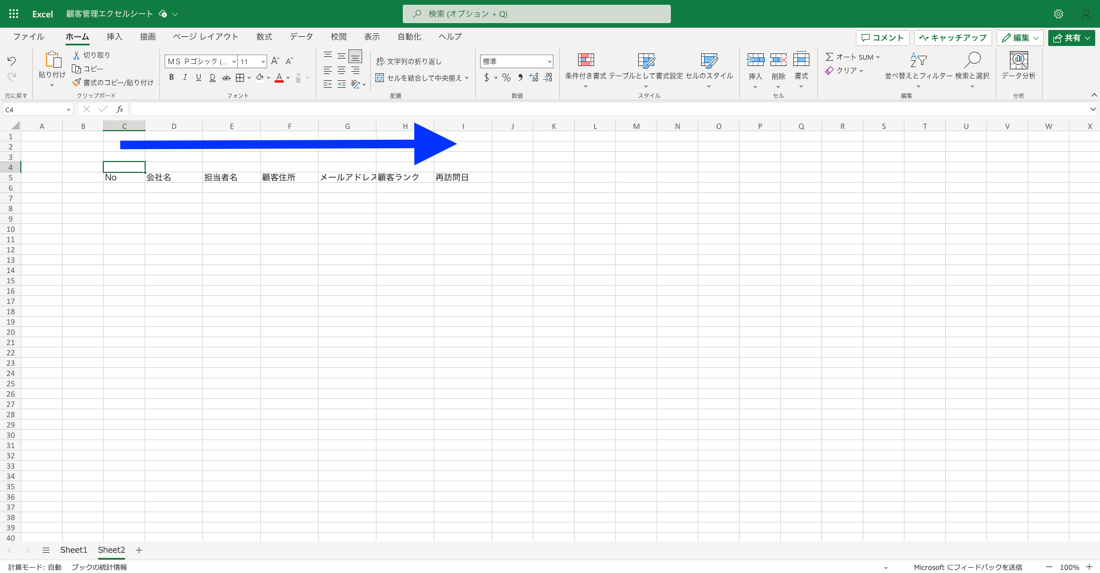
Once the required items have been determined, add items horizontally as shown in the image above.
Be sure to enter control items row by row.
Note that if you add control items row by row, you will not be able to take advantage of Excel's filter and sort functions.

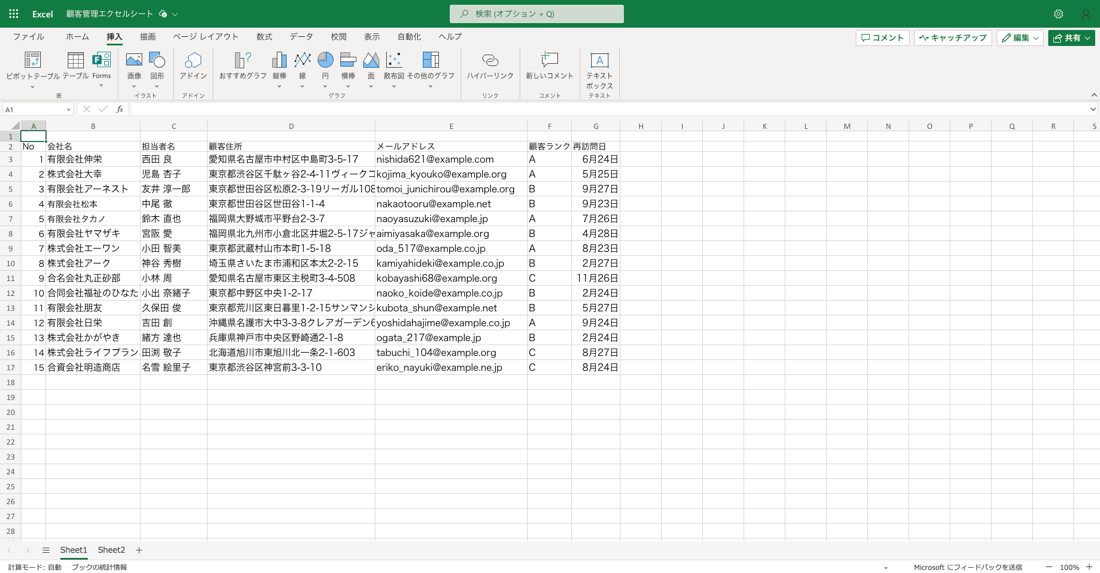
After completing the item setting, data will be entered into Excel.
When entering fixed data, "input rule setting" will enable efficient data entry in order to prevent input errors.
Step 3: Utilize the table function to create a database

Once you have completed data entry, utilize the table function to create a database.
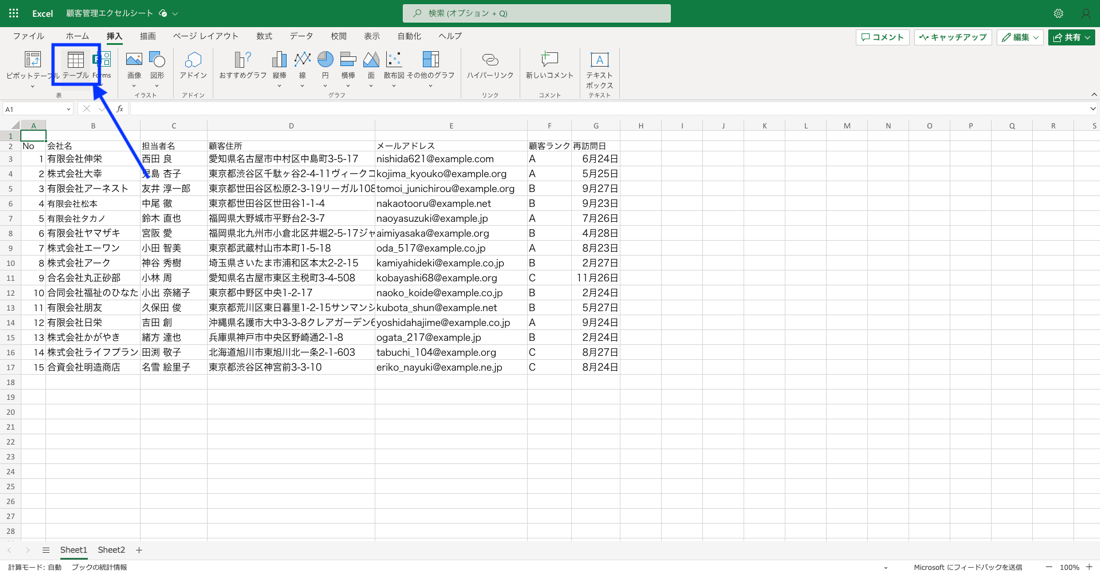
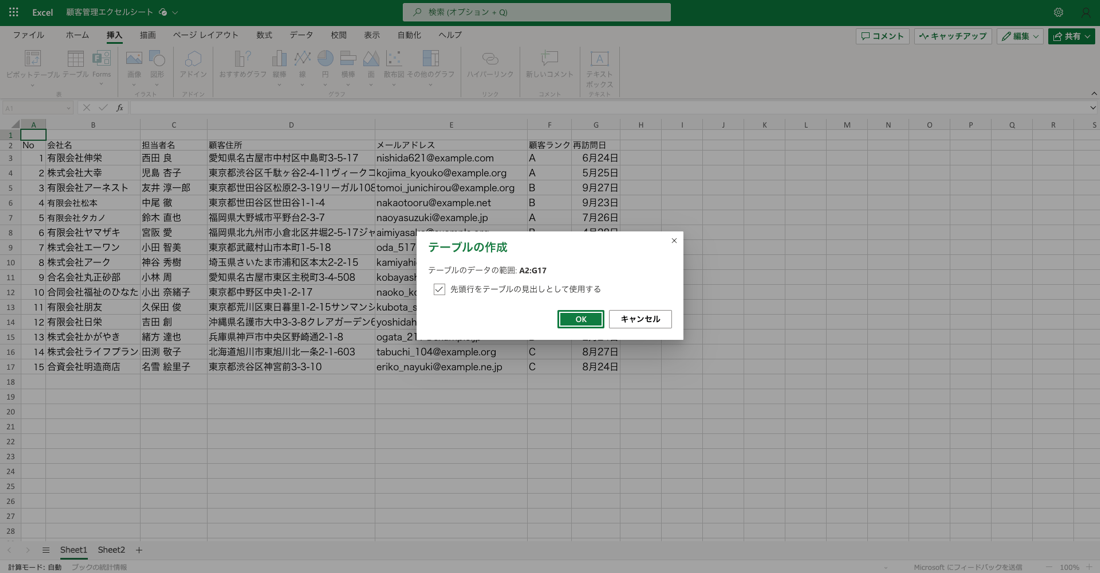
To use the table function, select "Table" under "Insert" in the upper left corner of the Excel screen.

THEN, THE ABOVE SCREEN APPEARS. CHECK THAT THERE ARE NO ERRORS IN THE TABLE DATA RANGE, CHECK THE "USE THE FIRST ROW AS THE TABLE HEADING" CHECK BOX, AND CLICK OK.

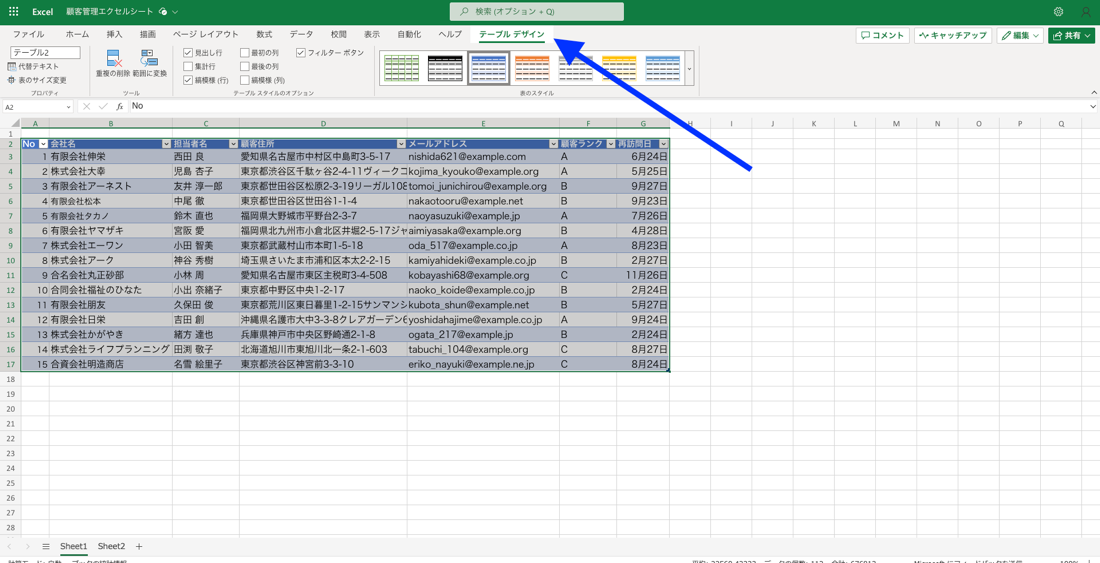
After clicking OK, the table shown above is created and the customer information can now be converted into a database.

The table design can be changed from "Table Design" on Excel.
This completes the database of customer information.
Related Articles>>What is Lead Management? Thorough Explanation of Basics, Management Methods, and Points to Note
6 useful functions to know when managing customers in Excel.

Excel has many useful functions for managing customer data. Here are seven carefully selected functions that are useful to know for customer management in Excel.
1. Fixed window frame function
Scrolling down the customer information data hides administrative items, so it may be difficult to see what information is in which column.

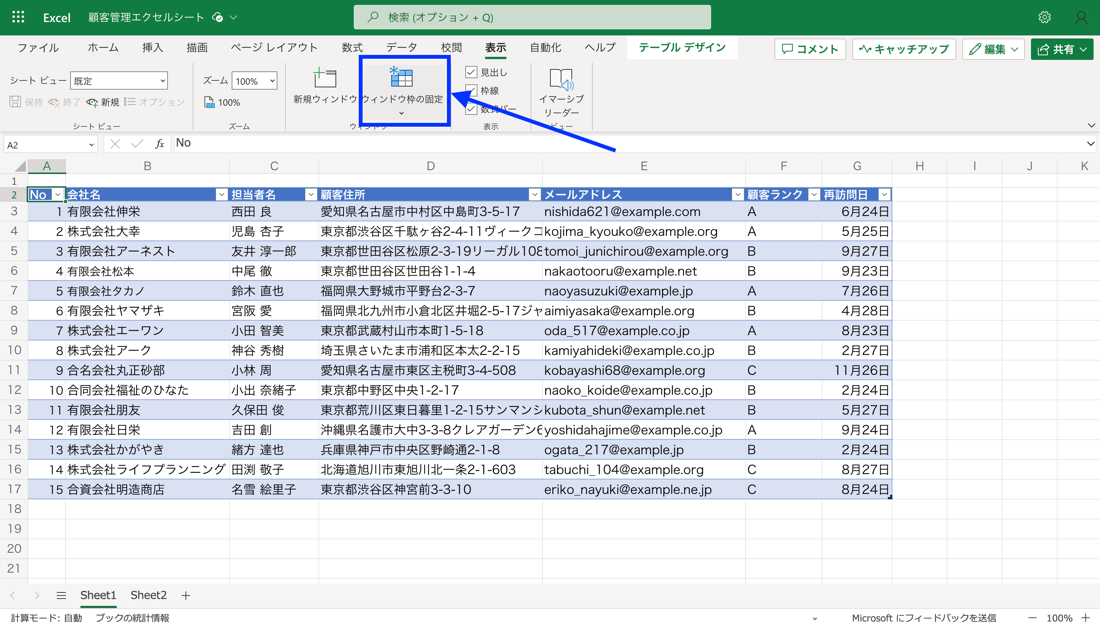
Using "Fix Window Border" will ensure that the item name is not hidden when scrolling.
To set this up, click on the "View" item on the Excel screen, and you will see an item titled "Fix Window Frame." Click on that item and set the first row as fixed, and the management items will be fixed.
2. Form Functions
Excel's form function is a function that displays a single line of data in list form in card form. For example, when creating a list (a table with column headings) summarizing customer data, it is time-consuming to move from cell to cell as you type. Using the form function, each row of the list can be displayed as a single card, simplifying input and making the data easier to manage.
Note that the form function is only available in the Windows version and not in the Mac version; by utilizing Excel's form function, you will be able to view the entirety of a single customer's data.
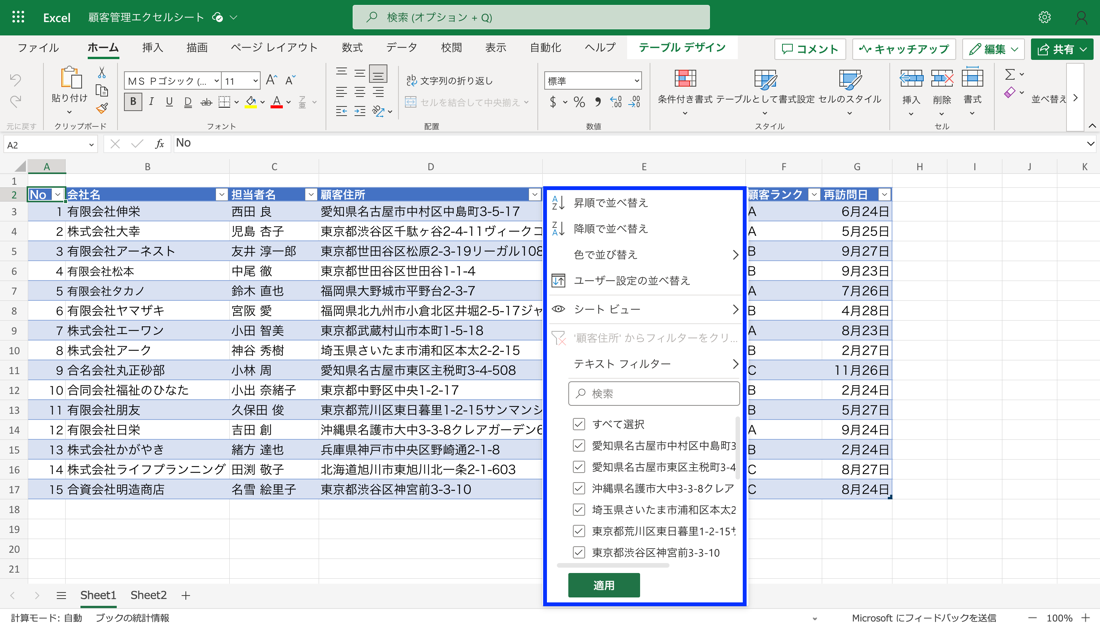
3. Filter function
By using Excel's filter function, only the necessary data can be extracted.

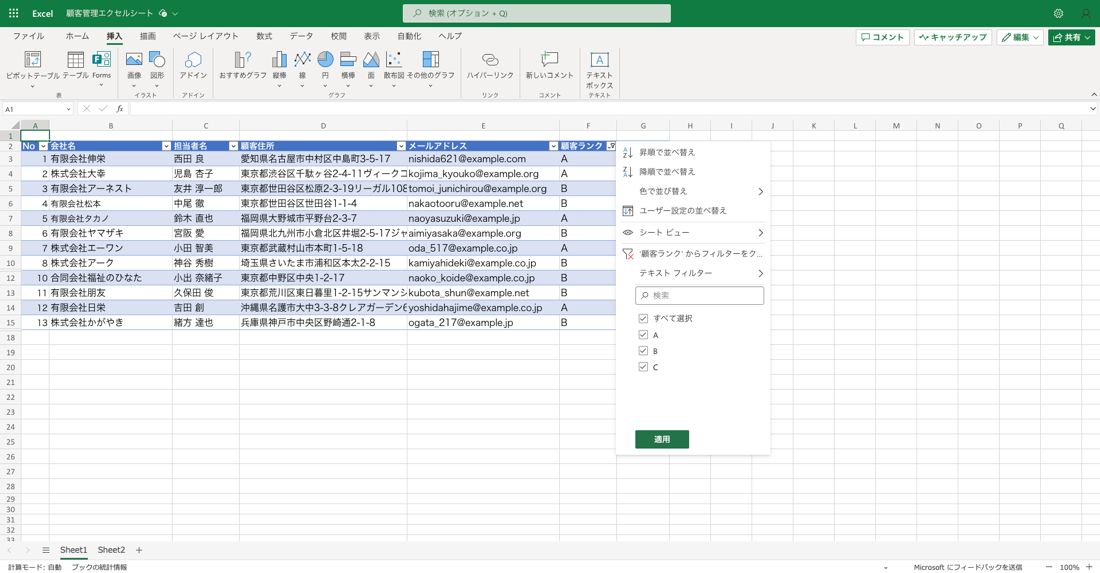
By clicking the toggle on the management item on the databased tave, you can sort in ascending or descending order, or specify conditions using the "text filter" to extract only the necessary information.
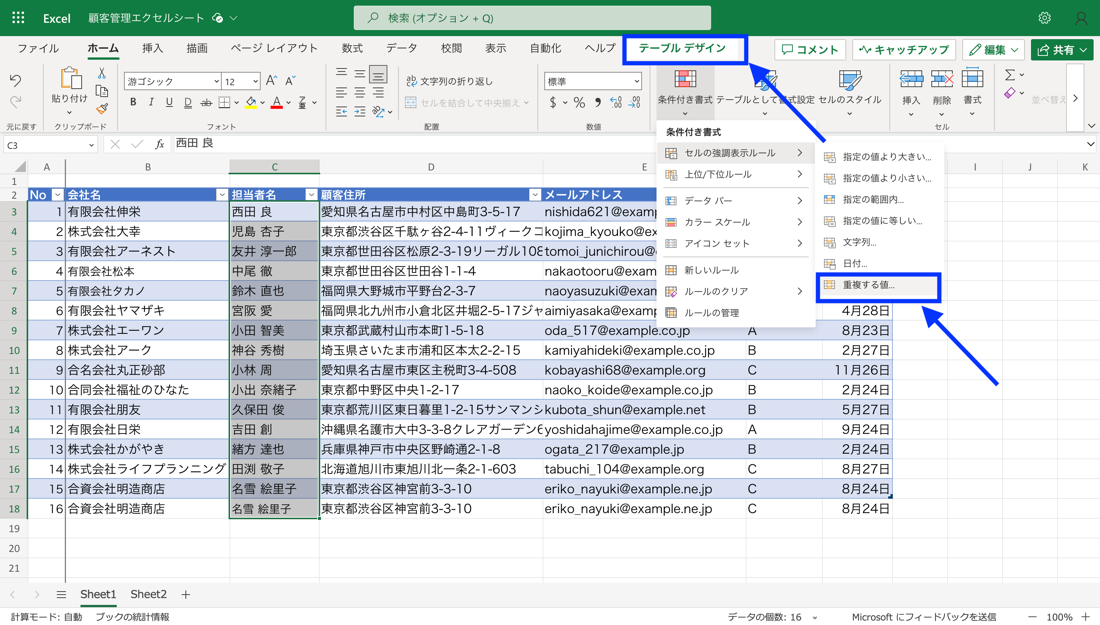
4. Duplicate check function
The duplicate check function is useful when checking for duplicate customer information.

The duplicate check function is available on the Excel screen by selecting "Conditional Formatting" from the "Table Design" tab, clicking on "Cell Highlighting Rules" and then "Duplicate Values".

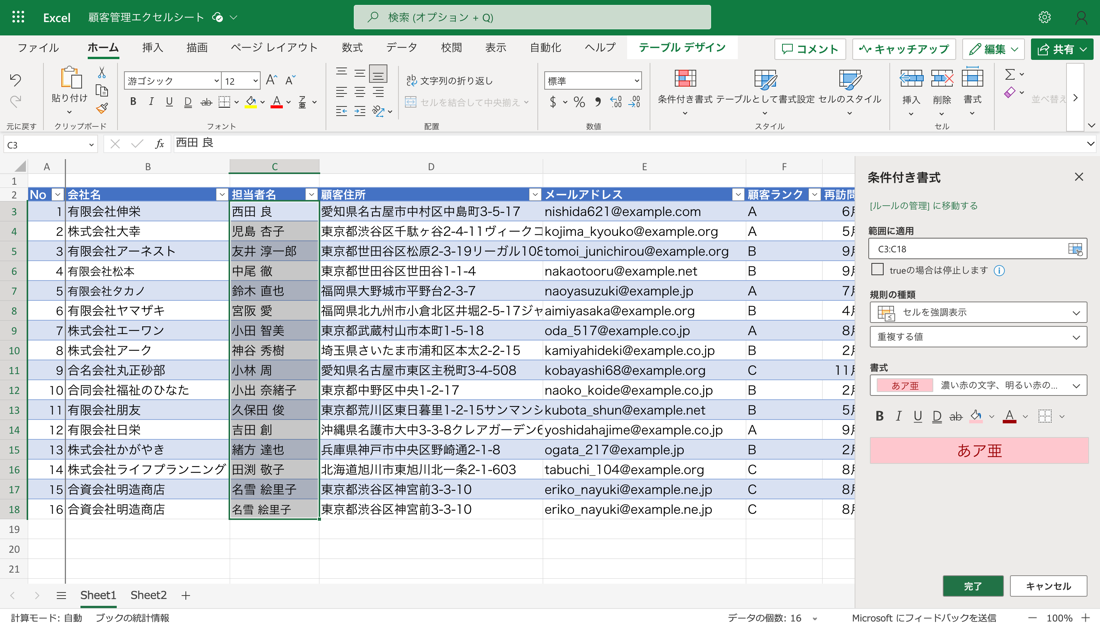
You will then be taken to the screen shown above, where you can specify the area you wish to check for duplicates and set the text formatting in case duplicates are found.
With the default settings, the text and cells in the duplicate area will change to red. Finally, check the "Done" button to start duplicate checking.

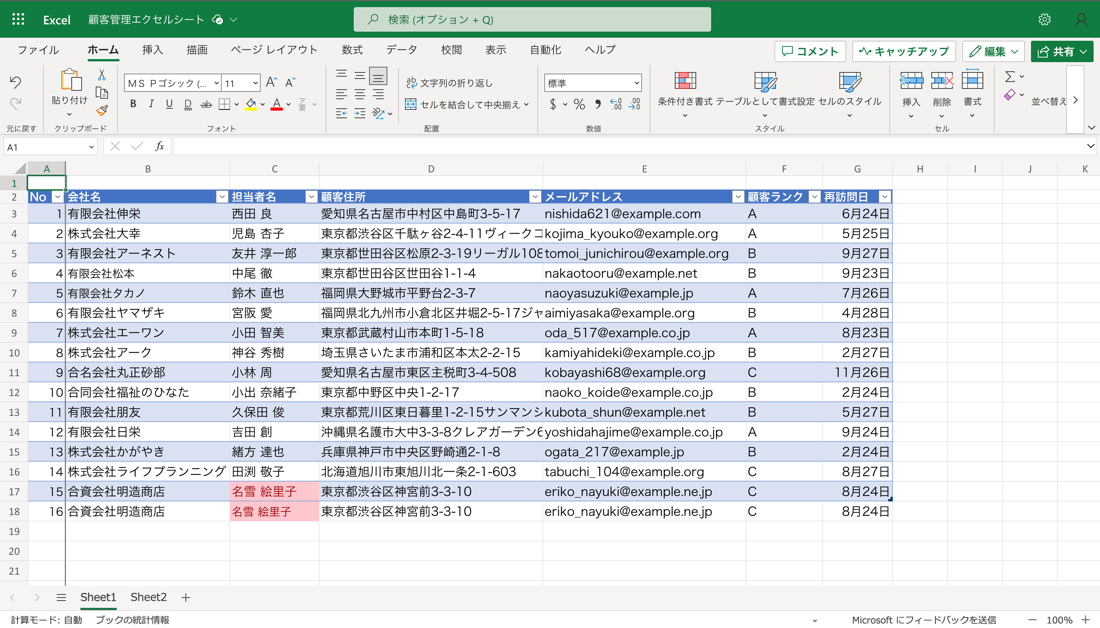
If there are duplicates, the cell and text color will change as shown above.
5. Search function
When searching for the customer information you need, scrolling through the columns is a waste of time.
Use the search function to find the information you want to retrieve.

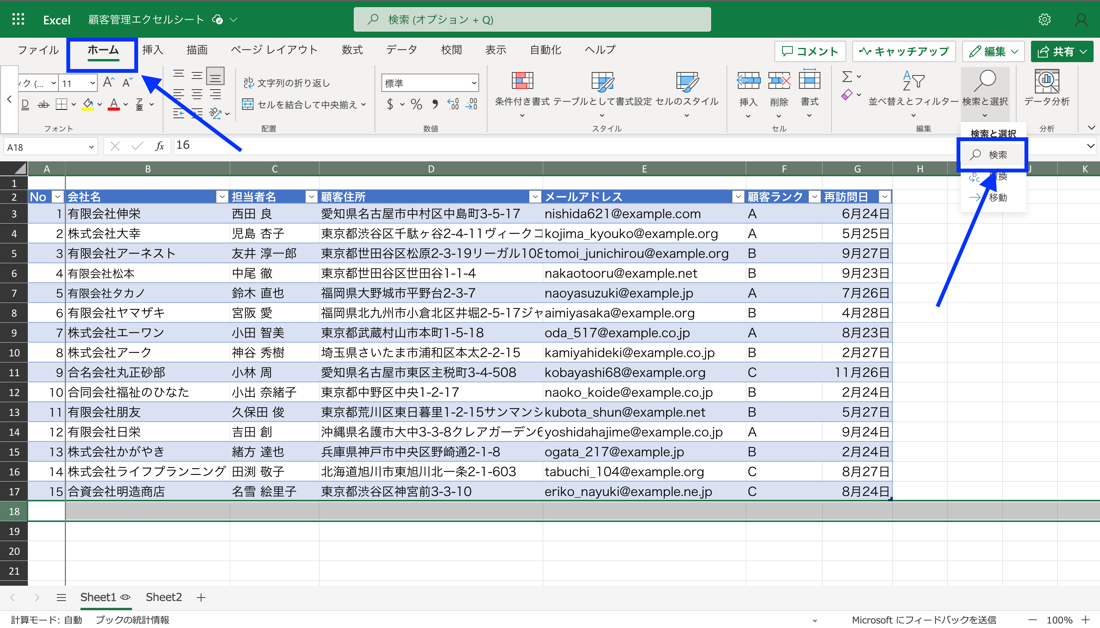
The search function is found in the "Home" tab under "Search and Select", so click on "Search".

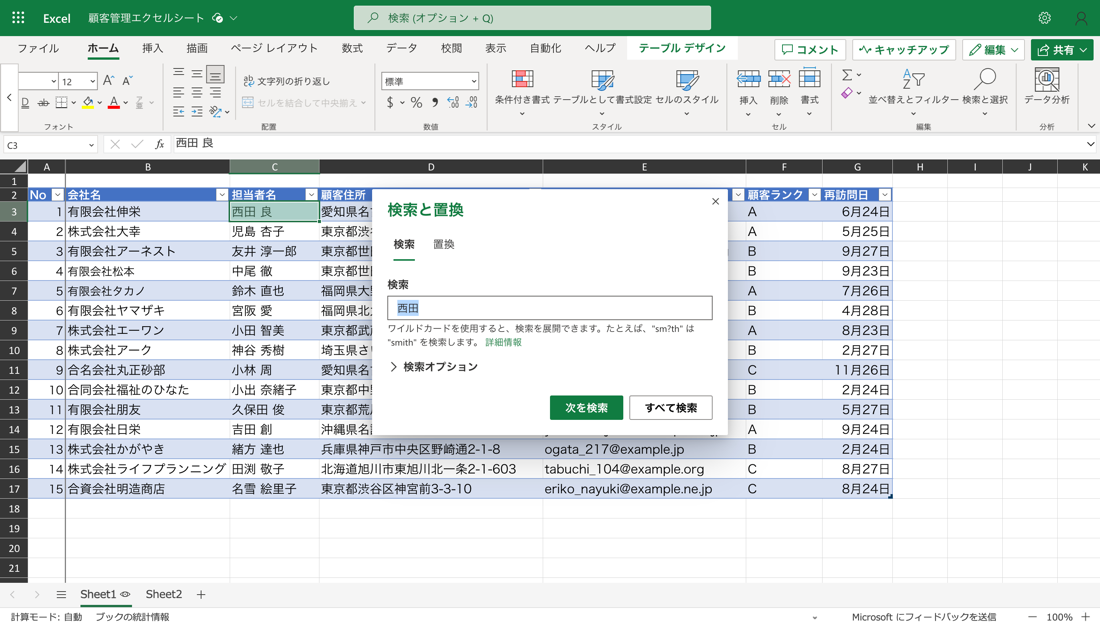
The "Find and Replace" screen will appear. Enter the keyword(s) you wish to search for. Cells matching the search will then be displayed in green.
You can also use the search options to perform more detailed searches, such as searching for cells with exactly the same contents.
6. Pivot table function
By utilizing Excel's pivot function, it is possible to aggregate and analyze large amounts of customer data. The original data can be divided into multiple categories, such as sales from new customers, sales from existing customers, etc., and then aggregated and analyzed.

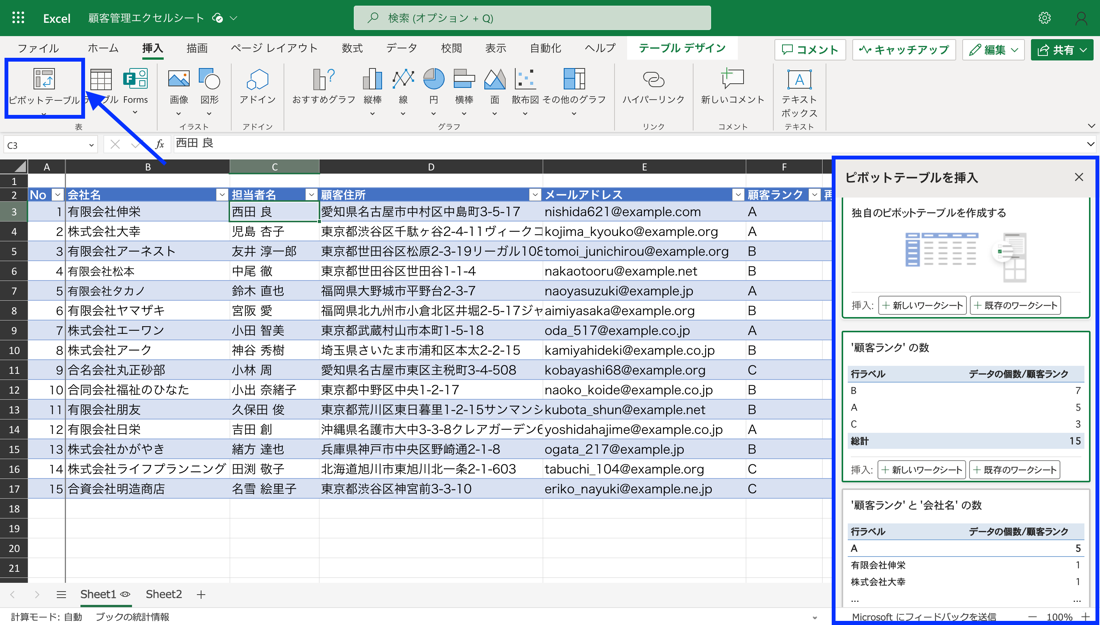
To create a pivot table, click on the "Pivot Table" item in the "Insert" tab of Excel.
You will then see a screen similar to the image above.
Basic tabulations have been completed in advance, and the tabulation results can be used to multiply data for more detailed data analysis.
Points to keep in mind when managing customers in Excel
There are five things to keep in mind when managing customers in Excel. We will look at each of them in detail.
1. Fix the editor of the data
To ensure uniformity of information and efficiency of management, the editors of the data should be fixed. Involvement of multiple editors can lead to variations in data handling and entry rules, which can reduce the reliability of the information. Another advantage is that if editors are limited, they can respond quickly when errors are discovered. As a specific approach, we recommend limiting the number of data editors to one or two and granting them editing privileges.
2. Avoid creating blank cells between data
The presence of blank cells can prevent Excel's automatic filter function and other functions from functioning properly.
Therefore, avoid creating blank cells between data. Blank cells can also make some data appear to be missing and cause erroneous analysis or reporting.
If necessary, set default values to fill in missing data and be careful not to create blank cells.
3. Data is managed vertically.
As mentioned above, customer information data should be arranged vertically. By arranging data vertically, you can take full advantage of Excel's tabulation and filter functions.
Vertically aligned data can be easily aggregated in a pivot table and can be easily filtered. Horizontal data is more difficult to use, making it more difficult to manage customers efficiently.
4. Do not add too many data items.
The more data items there are, the more difficult it becomes to keep track of the data because of the loss of listability. It also increases the time and effort required for data entry and the probability of errors. As mentioned above, when managing customers in Excel, be selective about the data items you need.
5. manual data entry and management methods
Creating a manual on how to enter and manage customer data will help establish a common understanding among the team. For example, incorporate specific procedures into the manual, such as the meaning of data items, explanations of how to input data, and the frequency and timing of data updates
. This is expected to improve data quality and operational efficiency.
Advantages of using Excel for customer management

The advantages of using Excel for customer management are as follows
1. Lower cost
If Excel is already in use in your company, you can start managing customers without incurring new costs. This is a great advantage, especially for companies with budget constraints.
2. If there is in-house use of Excel, training costs can be reduced.
When incorporating a dedicated customer management tool, training is required to learn how to operate it. This takes time and costs money. However, in companies where Excel is used on a daily basis in all aspects of the business, many employees are already familiar with its use. This allows for the development of customer management while minimizing training costs.
Disadvantages of using Excel for customer management

The disadvantages of managing customers are as follows
1. Complicated management and security measures
Excel can be file-based and easily downloaded and stored on individual computers. However, this increases the risk of customer information leakage. While the use of Excel is effective in that it minimizes expenses and training costs, it is vulnerable in terms of security.
2. The more data there is, the heavier the operation becomes.
As more customer data is added to Excel, operations become heavier and slower. This makes new data entry, data extraction, and other tasks difficult, which worsens work efficiency and user stress. This is not a problem for small amounts of data, but it is not suitable for managing large amounts of customer data (hundreds or thousands).
3. high likelihood of data entry errors or unknowingly deleting data
When customer management is performed in Excel, data entry is a manual process, which increases the possibility of erroneous data entry. Furthermore, as data entry continues, it is easy for careless mistakes to occur, such as overwriting data in the previous or next cell or accidentally deleting data in the previous or next cell.
4. Difficult to utilize data in the marketing area.
When utilizing customer data in the marketing domain, it is important to aggregate and analyze large amounts of data and obtain insights from it. With Excel, advanced analysis based on large amounts of data is highly challenging, and it is difficult to obtain insights that can be used in the marketing domain.
5. Unsuitable for mobile work
Excel is basically designed for PC use and is not suitable for operation on mobile devices. Especially when registering new customer data or updating customer data from outside the office, such as during sales activities, it is often inconvenient.
The following article details the customer management products that support appication, which are useful in the field of door-to-door sales and outside sales.
[Latest in 2024] Customer Management app14 selections! Thorough explanation of free versions, selection points, etc.
What CRM can manage customers more efficiently than Excel?

We have listed the advantages and disadvantages of using Excel for customer management, and we hope you have found that there are more disadvantages than advantages. If you are serious about maximizing your company's sales based on customer management, we recommend the introduction of CRM, a tool specialized for customer management.
CRM stands for "Customer Relationship Management," a tool dedicated to customer management.
Specifically, it accumulates, centrally manages, and shares all customer information, including not only quantitative information such as customer age, location, past transaction history, number of website visits, and inquiry history, but also qualitative information such as customer needs, requests, opinions, and sometimes complaints.
Then, based on the managed information, we analyze the issues and requests of each customer according to their attributes to provide services and products that suit each customer and increase their satisfaction. Raising the LTV (customer lifetime value) of each customer will ultimately lead to maximizing profits.

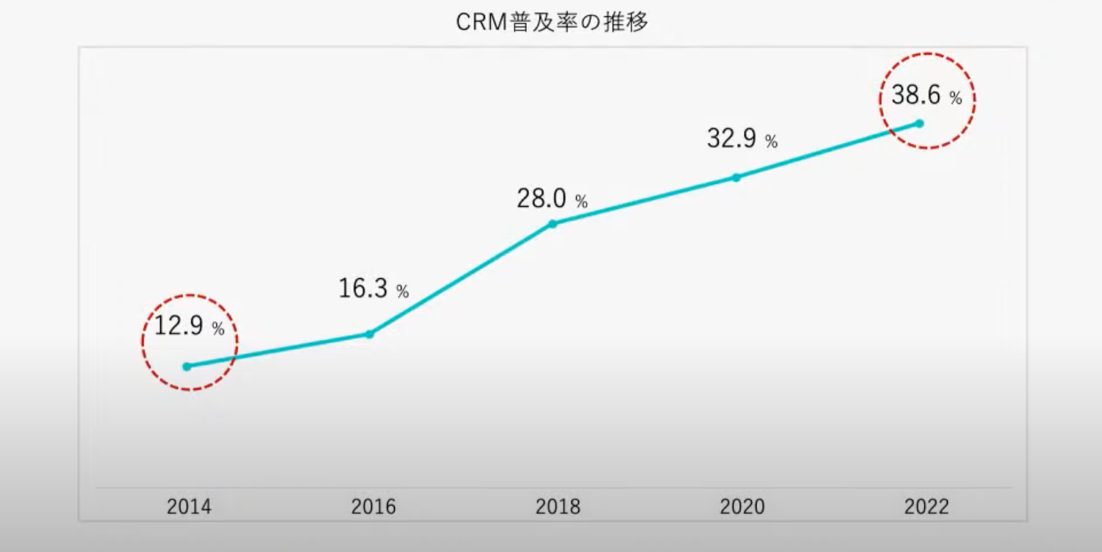
CRM has tripled in popularity over the past decade, and its use is spreading to a wide range of companies in all industries and business sectors.
CRM has been implemented, but many companies have not been able to use it
Although CRM is being implemented in more and more companies every year, the truth is that most companies are not making good use of CRM.

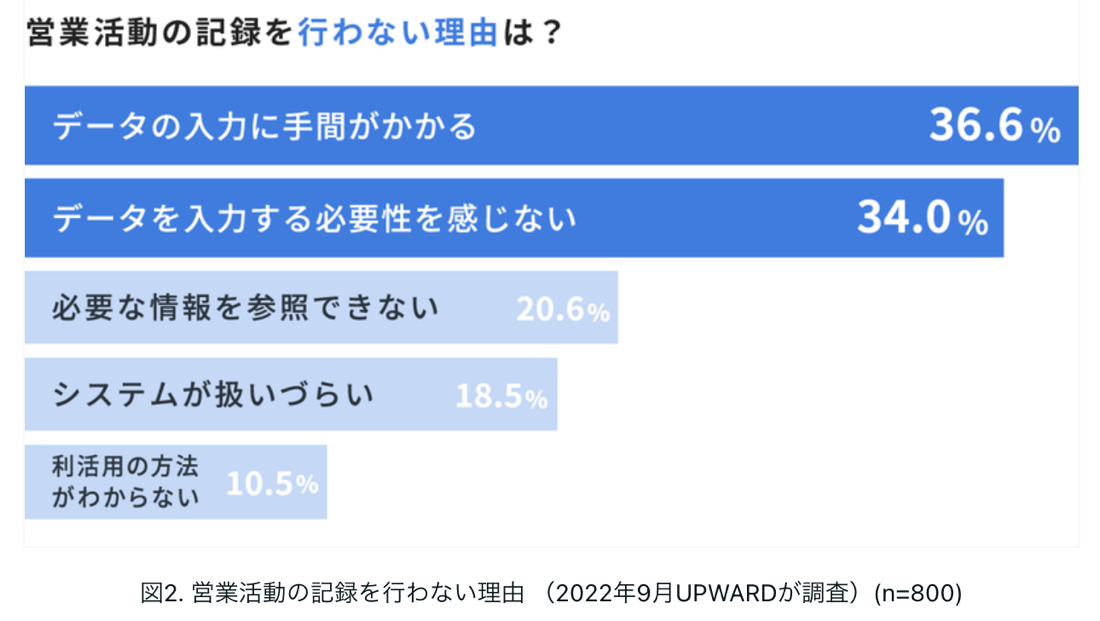
The above table is based on our own survey of "Reasons for not logconducting sales activities".
The reality is that, although CRM is in place, many field staff say that it is time-consuming to enter data and that they do not feel the need to enter data.
If data is not entered, customer information is not stored in the CRM, and it cannot fully function as a CRM.
In addition, data entry is only a process, not an objective. Even if data entry is completed, it will not lead to maximization of sales unless customer data is utilized and on-site behavior is changed before and after.
Based on the above survey results, it is necessary to select a CRM that is not only rich in functions and capable of acquiring detailed marketing data, but also easy for front-line staff to input data and easily establish data input.
IF YOU ARE CONSIDERING CRM IMPLEMENTATION, WE RECOMMEND UPWARD FOR EASY DATA ENTRY AND RETENTION.
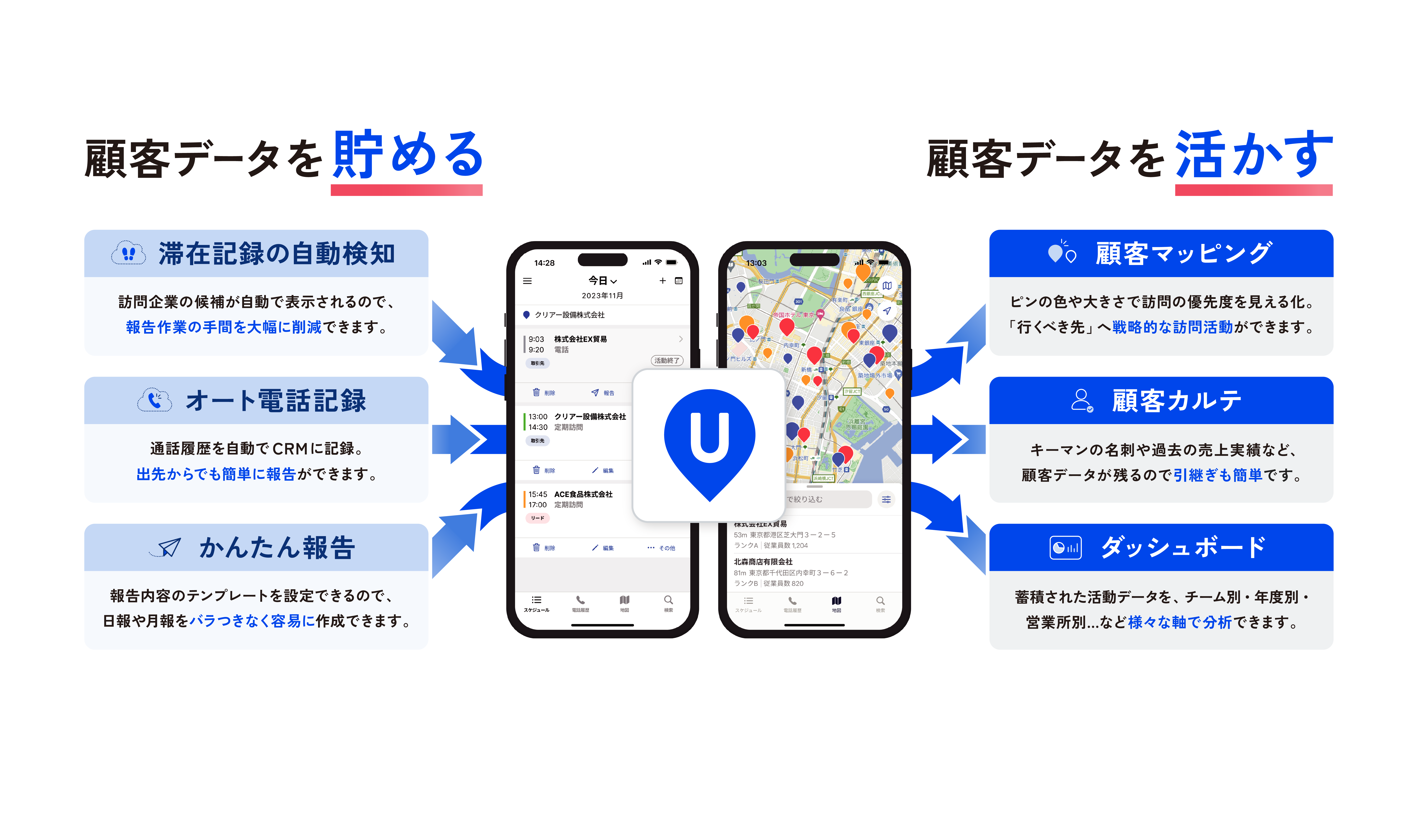
WE PROVIDE AND DEVELOP UPWARD, A SALES DIGITAL TRANSFORMATIONTOOL THAT MAXIMIZES THE VALUE OF CRM AND SFA.

BY UTILIZING "UPWARD," CUSTOMER DATA SUCH AS CUSTOMER PROFILE INFORMATION, BUSINESS MEETING HISTORY, AND ACTIVITY REPORTS CAN BE SEMI-AUTOMATICALLY STORED IN CRM WITH A SINGLE SMARTPHONE.
WHEN THE PERSON IN CHARGE IN THE FIELD CREATES A DAILY SALES REPORT OR ACTIVITY REPORT, NOT ONLY IS A REPORT FORMAT AUTOMATICALLY CREATED ON "UPWARD," BUT VOICE INPUT SUPPORT MAKES IT POSSIBLE TO EASILY REPORT IN SPARE TIME. THE DATA ENTERED DAILY IS VISUALIZED ON A MAP, ALLOWING THE USER TO INTUITIVELY KNOW WHICH CUSTOMERS TO VISIT NEXT.
Anyone can make strategic visits to the places they really "need to go," not just the usual "easy-to-get-to" destinations.
For more detailed information, please download the service document from the following URL.
Download the "UPWARD Introduction Document" at
Manage your customers with Excel or CRM according to your company's objectives!
In this article, I have explained how to manage customers using Excel.
Customer management can be easily created in Excel, which is often used in daily business, but due to security vulnerabilities and the fact that files become more difficult to manipulate as data accumulates, it is recommended to introduce CRM, a tool specialized for customer management, if possible.
However, CRM implementation is also costly, so please consider its introduction depending on your company's situation.
Download "Introduction to UPWARD
A full overview of the benefits and best practices of the introduction of the system
Download a free set of 3 documents